HEIC to JPG Converter Guide: Complete iPhone Photo Conversion Tutorial 2025
Master HEIC to JPG conversion for seamless iPhone photo sharing. Learn about HEIF format advantages, conversion techniques, quality optimization, and compatibility solutions that ensure your photos work perfectly across all devices and platforms.
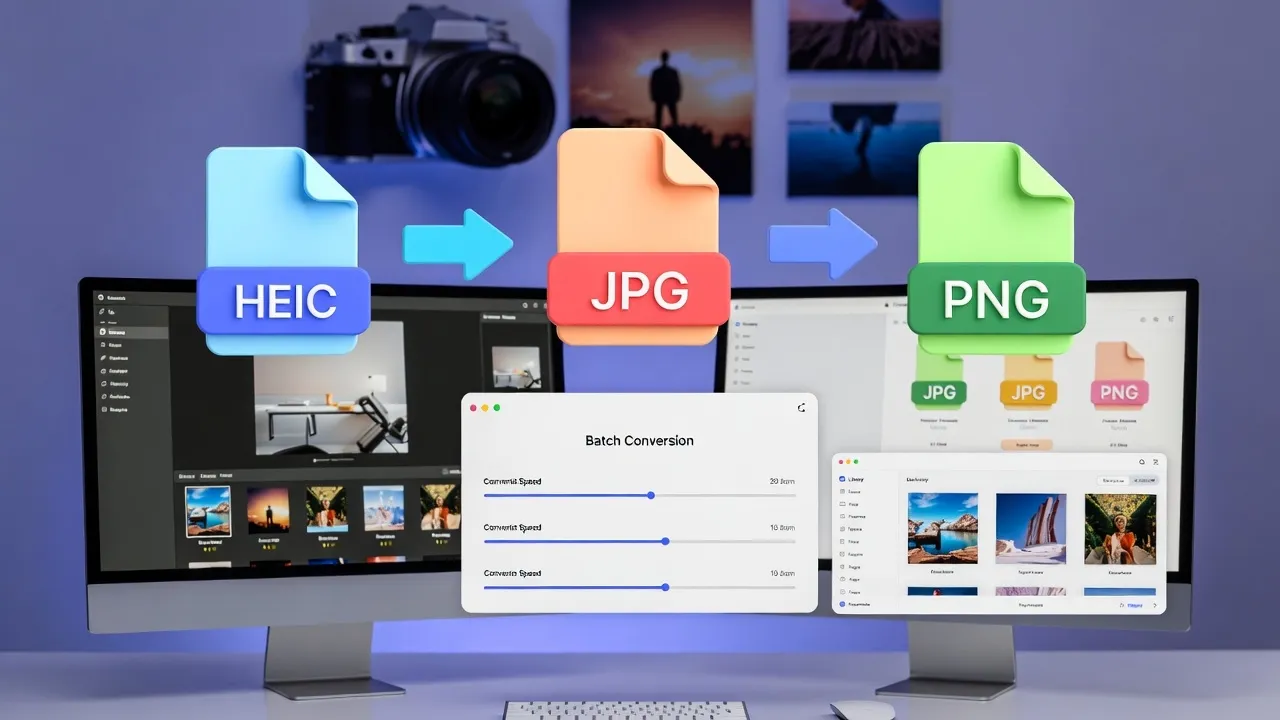
Understanding HEIC Format and iPhone Photography
HEIC (High Efficiency Image Container) represents Apple's adoption of the modern HEIF (High Efficiency Image Format) standard. Since iOS 11, iPhones capture photos in HEIC format by default, offering superior compression and image quality compared to traditional JPEG format.
Our HEIC to JPG Converter provides instant, high-quality conversion that preserves image details while ensuring universal compatibility across all devices and platforms.
HEIC vs JPEG: Technical Comparison
Understanding the differences between HEIC and JPEG helps explain why conversion is necessary and what to expect:
| Feature | HEIC | JPEG |
|---|---|---|
| File Size | 50% smaller | Larger files |
| Image Quality | Superior compression | Good quality |
| Color Depth | 16-bit per channel | 8-bit per channel |
| Compatibility | Limited (Apple ecosystem) | Universal support |
| Transparency | Supported | Not supported |
| Multiple Images | Supported (Live Photos) | Single image only |
Key Insight: While HEIC offers technical advantages, JPEG remains the standard for maximum compatibility across devices, social media platforms, and web applications.
Why Convert HEIC to JPG?
Despite HEIC's advantages, converting to JPG is often necessary for practical photo sharing and usage:
Common Conversion Scenarios:
- Social Media Sharing: Instagram, Facebook, Twitter prefer JPEG format
- Email Attachments: Recipients on non-Apple devices can't view HEIC
- Website Upload: Most web platforms don't support HEIC format
- Photo Printing: Print services typically require JPEG files
- Work Environments: Corporate systems often lack HEIC support
- Older Devices: Android phones and PCs may not recognize HEIC
- Cloud Storage: Some services don't preview HEIC images
- Photo Editing: Many editing apps don't support HEIC input
Compatibility Solution
Convert HEIC to JPG for universal compatibility while keeping original HEIC files for best quality. This ensures maximum flexibility for different use cases.
Step-by-Step HEIC to JPG Conversion Process
Converting HEIC files to JPG is straightforward with the right tools and techniques:
Using Online HEIC Converter
Conversion Steps:
- Navigate to our HEIC to JPG Converter
- Click "Select Files" or drag HEIC images to upload area
- Choose quality settings (recommended: 90-95% for best balance)
- Click "Convert" to process your images
- Download individual files or zip archive with all converted images
- Verify image quality and file compatibility
Batch Conversion for Multiple Photos
Process entire photo albums efficiently using batch conversion features. Upload up to 50 images simultaneously for bulk processing, maintaining consistent quality settings across all files.
Quality Optimization and Settings
Achieving optimal conversion results requires understanding quality settings and their impact on file size and visual appearance:
Quality Level Guidelines
| Quality Setting | Use Case | File Size Impact | Visual Quality |
|---|---|---|---|
| 95-100% | Professional photography, printing | Large files | Excellent |
| 85-94% | Web sharing, social media | Medium files | Very good |
| 70-84% | Email attachments, quick sharing | Small files | Good |
| 50-69% | Thumbnails, low-bandwidth sharing | Very small | Acceptable |
Resolution and Sizing Considerations
Modern iPhones capture photos at very high resolutions. Consider resizing during conversion for specific purposes:
- Social media: 1080x1080 pixels for optimal display
- Web usage: 1920x1080 pixels for full HD displays
- Email: 800x600 pixels for faster sending
- Print: Keep original resolution for best quality
Mobile Photo Management Strategies
Implement effective strategies for managing iPhone photos and conversion workflows:
iPhone Camera Settings Optimization
Camera Format Options:
- High Efficiency (HEIC): Saves storage space, requires conversion for sharing
- Most Compatible (JPEG): Universal format, larger file sizes
- ProRAW (iPhone 12 Pro+): Maximum quality, very large files
Workflow Recommendations
Develop efficient photo management workflows based on your primary use cases:
- Social Media Users: Set iPhone to JPEG mode for direct sharing
- Professional Photographers: Keep HEIC, convert selectively for clients
- Mixed Usage: Use HEIC by default, convert batches as needed
- Business Users: Convert immediately after capture for system compatibility
Platform Compatibility Solutions
Ensure your converted photos work perfectly across different devices and platforms:
Device Compatibility Testing
Verify converted images display correctly on target devices and platforms. Test across different screen sizes, resolutions, and operating systems to ensure consistent appearance.
Web and Social Media Optimization
Platform-Specific Requirements:
- Instagram: 1080x1080 pixels, JPEG format, under 8MB
- Facebook: 2048x2048 pixels maximum, JPEG preferred
- Twitter: 4096x4096 pixels maximum, JPEG or PNG
- LinkedIn: 7680x4320 pixels maximum, JPEG recommended
- Email: Under 25MB total, 1920 pixels wide maximum
Use our Image Resizer tool to optimize dimensions alongside format conversion.
Advanced Conversion Techniques
Master advanced methods for specific conversion scenarios and professional requirements:
Metadata Preservation
Our converter preserves essential metadata including:
- EXIF data (camera settings, date, location)
- Color profile information
- Image orientation data
- Copyright and author information
Automated Conversion Workflows
Set up automated processes for regular photo conversion needs. Consider cloud-based solutions that automatically convert HEIC uploads to JPEG for team collaboration or client delivery.
Privacy and Security Considerations
Maintain photo privacy and security throughout the conversion process:
Online Conversion Security
Security Best Practices:
- Use secure, reputable conversion services
- Verify automatic file deletion policies
- Avoid uploading sensitive or personal photos to unknown services
- Consider offline conversion tools for confidential images
- Remove location data before sharing converted photos
Metadata Privacy
Be aware that converted JPEG files retain metadata from original HEIC images. Use our conversion settings to remove location data and personal information when sharing publicly.
Related Image Tools and Workflow Integration
Enhance your photo processing workflow with complementary image tools:
Complete Image Processing Suite:
- HEIC to JPG Converter - Format conversion
- Image Resizer - Dimension optimization
- Image Compressor - File size reduction
- Image Cropper - Composition adjustment
- Image Converter - Multi-format support
- Image to Base64 - Web embedding
Create comprehensive workflows combining multiple image tools for professional photo processing and optimization.
Conclusion: Mastering iPhone Photo Compatibility
Converting HEIC to JPG is essential for seamless photo sharing across all devices and platforms. While HEIC offers superior compression and quality, JPEG's universal compatibility makes it indispensable for modern digital communication.
By understanding conversion techniques, quality optimization, and workflow integration, you can maintain excellent image quality while ensuring your photos work perfectly everywhere they need to be shared or displayed.
Conversion Tips
- Use 90%+ quality for important photos
- Keep original HEIC files as backup
- Batch convert for efficiency
- Test on target devices
- Remove metadata for privacy
Quick Comparison
- HEIC: Smaller, better quality, limited compatibility
- JPG: Universal support, larger files, good quality
- Best: Use HEIC on device, convert for sharing