PDF Editor Guide: Complete Document Editing & Management Tutorial 2025
Master professional PDF editing and document management for business efficiency. Learn advanced editing techniques, collaboration workflows, digital signatures, and optimization strategies that streamline document processes.
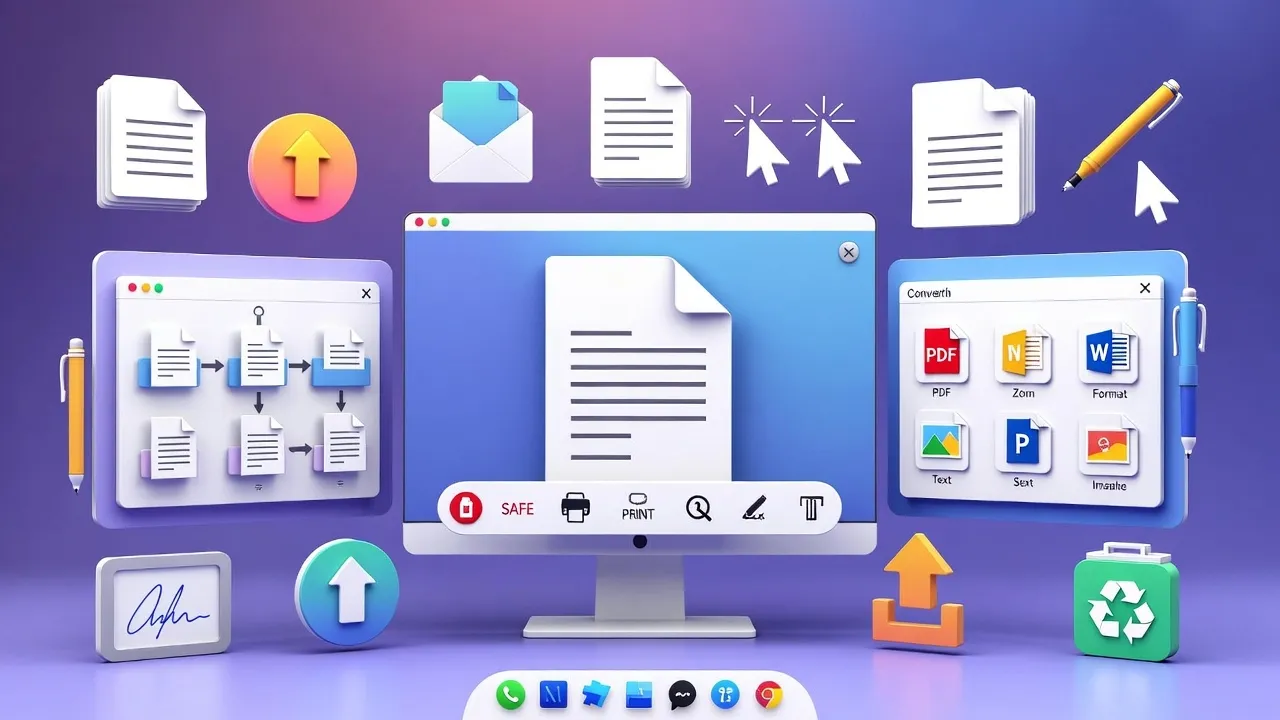
The Evolution of PDF Editing in Digital Workflows
PDF editing has become essential for modern business operations, enabling professionals to modify, annotate, and collaborate on documents without sacrificing formatting integrity. As remote work and digital collaboration increase, mastering PDF editing tools ensures efficient document management and professional presentation standards.
Our PDF Editor provides comprehensive document editing capabilities that support professional workflows while maintaining document security and formatting quality.
Comprehensive PDF Editing Capabilities
Modern PDF editing encompasses far more than simple text changes, offering comprehensive document modification and enhancement features:
Core Editing Functions
Essential PDF Editing Features:
- Text Editing: Modify, add, or delete text while preserving formatting
- Image Management: Insert, replace, resize, and position images
- Page Operations: Add, remove, rotate, and reorder pages
- Form Creation: Design fillable forms with various field types
- Annotation Tools: Comments, highlights, stamps, and markup
- Digital Signatures: Secure document signing and verification
- Watermarks: Brand protection and document identification
- Security Features: Password protection and access restrictions
Advanced Editing Techniques
Professional PDF editing involves understanding document structure, maintaining formatting consistency, optimizing for different viewing contexts, and ensuring accessibility compliance across various devices and platforms.
Professional Editing Tip
Always work with high-quality source documents and maintain backup copies. Use layers strategically for complex edits, and test final documents across different PDF readers to ensure compatibility.
Document Collaboration and Review Workflows
Effective PDF collaboration streamlines review processes and enhances team productivity through structured feedback and approval systems:
Annotation and Comment Systems
Professional document review relies on systematic annotation practices that provide clear, actionable feedback. Use consistent comment styles, categorize feedback types, and establish review hierarchies for efficient collaboration.
Version Control and Track Changes
Collaboration Best Practices:
- Document Versioning: Use clear naming conventions and version numbers
- Change Documentation: Track all modifications with timestamps and author attribution
- Review Cycles: Establish clear timelines and approval processes
- Consolidation Procedures: Merge feedback from multiple reviewers systematically
- Final Approval: Implement sign-off procedures and access controls
Multi-User Collaboration Features
Modern PDF editing supports simultaneous collaboration through cloud integration, real-time updates, and conflict resolution systems that maintain document integrity while enabling team efficiency.
Form Creation and Interactive Documents
PDF forms transform static documents into interactive tools that collect data, automate workflows, and enhance user engagement:
Form Field Types and Applications
Interactive Form Elements:
- Text Fields: Single-line and multi-line text input areas
- Checkboxes: Multiple selection options and toggles
- Radio Buttons: Exclusive selection groups
- Dropdown Lists: Space-efficient option menus
- Digital Signatures: Secure authentication fields
- Date Pickers: Calendar-based date selection
- File Attachments: Document upload capabilities
- Calculations: Automatic mathematical computations
Form Design and User Experience
Effective form design considers user workflow, visual hierarchy, logical field ordering, and clear instructions. Optimize forms for both desktop and mobile completion while maintaining professional appearance.
Data Collection and Analysis
PDF forms enable automated data collection, export capabilities for analysis, and integration with business systems for seamless workflow automation and reporting.
Digital Signatures and Document Security
Digital signatures provide legal validity and document authentication while security features protect sensitive information:
Digital Signature Implementation
Modern PDF editors support various signature types including drawn signatures, typed signatures, uploaded images, and certificate-based digital signatures that provide legal authentication and non-repudiation.
Security and Access Control
PDF Security Features:
- Password Protection: Document opening and modification restrictions
- Permission Controls: Printing, copying, and editing limitations
- Encryption: Data protection during transmission and storage
- Watermarks: Visual authentication and ownership identification
- Redaction: Permanent removal of sensitive information
- Audit Trails: Document access and modification logging
Security Best Practices
Use strong passwords, regularly update software, verify digital certificates, implement proper access controls, and maintain secure backup procedures for important documents.
Document Conversion and Format Management
PDF editors serve as central hubs for document format conversion and standardization across business workflows:
Multi-Format Support
Professional PDF tools convert between various formats including Word, Excel, PowerPoint, images, and web formats while preserving formatting, hyperlinks, and interactive elements.
Optimization for Different Use Cases
Output Optimization Scenarios:
- Print Optimization: High-resolution images and CMYK color spaces
- Web Display: Compressed file sizes and RGB color optimization
- Archive Storage: PDF/A compliance for long-term preservation
- Mobile Viewing: Responsive layouts and touch-friendly interfaces
- Accessibility: Screen reader compatibility and navigation aids
Batch Processing and Automation
Advanced PDF tools support batch operations for multiple documents, automated conversion workflows, and template-based document generation that saves time and ensures consistency.
Professional Document Design and Branding
PDF editing enables consistent brand presentation and professional document design across all business communications:
Brand Consistency and Templates
Create standardized templates with company logos, color schemes, fonts, and layout guidelines. Consistent branding across PDF documents reinforces professional image and brand recognition.
Typography and Layout Optimization
Professional PDF design considers readability, visual hierarchy, white space utilization, and responsive layout principles that work across different viewing environments and accessibility requirements.
Design Excellence
Use consistent spacing, maintain hierarchical typography, optimize images for intended output, and ensure accessibility compliance for inclusive document design that serves all users effectively.
Integration with Business Workflows
PDF editing tools integrate with existing business systems to streamline document workflows and improve operational efficiency:
Cloud Storage and Synchronization
Modern PDF editors integrate with cloud platforms for seamless document access, automatic synchronization, and collaborative editing across devices and locations.
CRM and Database Integration
Advanced systems connect PDF forms with customer relationship management tools, databases, and business intelligence platforms for automated data processing and analysis.
Automated Workflow Triggers
Workflow Automation Examples:
- Form Submissions: Automatic routing to appropriate departments
- Document Approval: Sequential review and sign-off processes
- Archive Management: Automatic filing and retention policies
- Notification Systems: Status updates and deadline reminders
- Data Extraction: Automatic field parsing and database updates
Enhance your PDF editing workflow with complementary tools: Image Converter for format preparation, Image Compressor for file optimization, and QR Code Generator for interactive elements.
Accessibility and Compliance Standards
Professional PDF editing includes accessibility considerations and compliance with legal and industry standards:
Accessibility Best Practices
PDF Accessibility Features:
- Alt Text: Descriptive text for images and graphics
- Logical Reading Order: Proper content structure for screen readers
- Heading Hierarchy: Proper H1-H6 tagging for navigation
- Color Contrast: Sufficient contrast ratios for visibility
- Form Labels: Clear field identification and instructions
- Keyboard Navigation: Tab order and focus indicators
Legal and Industry Compliance
Different industries require specific PDF standards including PDF/A for archival, PDF/UA for accessibility, and sector-specific requirements for healthcare, finance, and government organizations.
Quality Assurance and Testing
Implement systematic testing procedures for accessibility compliance, cross-platform compatibility, and document integrity across different PDF readers and assistive technologies.
Frequently Asked Questions
Table of Contents
Quick Tips
- Always work with backup copies of important documents
- Use consistent naming conventions for version control
- Test documents across different PDF readers
- Implement proper security measures for sensitive content
- Follow accessibility guidelines for inclusive documents
- Optimize file sizes for intended distribution methods