HTML to Markdown Conversion Guide: Complete Tutorial for Web Developers 2025
Master HTML to Markdown conversion with our comprehensive guide. Learn conversion techniques, best practices, automation strategies, and how to choose the right tools for your documentation, blogging, and content migration projects.
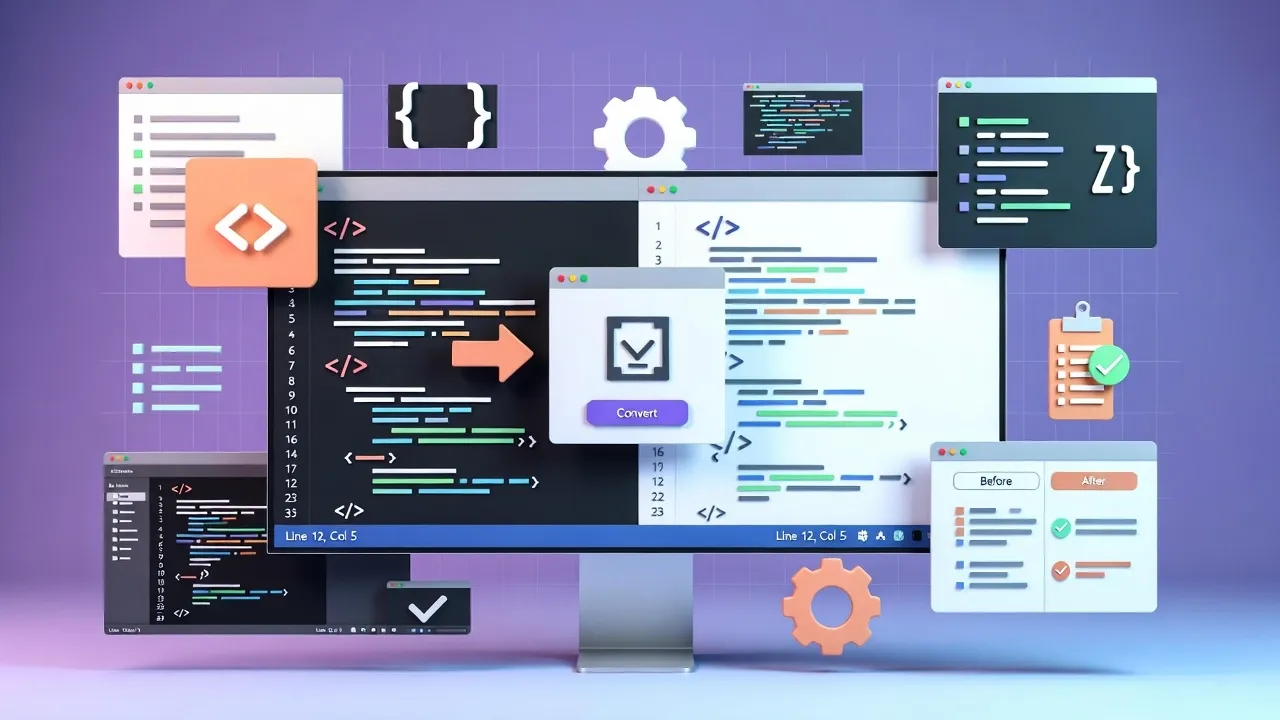
Need a Quick Conversion?
Try our free online HTML to Markdown converter for instant conversion with live preview. No registration required, works entirely in your browser.
What is HTML to Markdown Conversion?
HTML to Markdown conversion is the process of transforming HTML (HyperText Markup Language) code into Markdown syntax. HTML uses tags like <p>, <h1>, and <div> to structure content, while Markdown uses simple text-based formatting symbols like # for headers and * for lists.
This conversion is particularly valuable for developers migrating legacy websites, technical writers consolidating documentation, content creators moving between platforms, and teams standardizing on Markdown for better collaboration.
HTML vs. Markdown: Key Differences
Understanding the differences between HTML and Markdown helps you make informed decisions about conversion and format selection:
| Aspect | HTML | Markdown |
|---|---|---|
| Syntax | Tag-based (<p>...</p>) |
Symbol-based (#, *, -, etc.) |
| Readability | Less readable raw format | Highly readable plain text |
| File Size | Larger due to tags | Smaller and lightweight |
| Learning Curve | Moderate to steep | Very easy to learn |
| Version Control | Difficult to diff and merge | Git-friendly, clean diffs |
| Flexibility | Highly flexible, powerful | Limited but extensible |
| Use Cases | Web pages, complex layouts | Documentation, blogs, READMEs |
How HTML to Markdown Conversion Works
Understanding the conversion process helps you understand limitations and choose the best approach:
Conversion Process Steps:
- HTML Parsing: The converter reads and parses your HTML code structure
- Element Mapping: HTML tags are mapped to their Markdown equivalents:
<h1>to#,<h2>to##, etc.<p>to plain paragraphs with line breaks<strong>to**text**<em>to*text*<a>to[text](url)<img>to
- Content Extraction: Text content is extracted and cleaned
- Attribute Handling: Non-critical attributes are removed or preserved in HTML comments
- Output Generation: Clean Markdown syntax is generated
HTML to Markdown Element Mapping
Here's a quick reference for common conversions:
HTML: <h1>Heading 1</h1>
Markdown: # Heading 1
HTML: <h2>Heading 2</h2>
Markdown: ## Heading 2
HTML: <p>Paragraph</p>
Markdown: Paragraph
HTML: <strong>Bold</strong>
Markdown: **Bold**
HTML: <em>Italic</em>
Markdown: *Italic*
HTML: <a href="url">Link</a>
Markdown: [Link](url)
HTML: <ul><li>Item</li></ul>
Markdown: * Item
HTML: <ol><li>Item</li></ol>
Markdown: 1. Item
HTML: <img src="image.jpg" alt="Description">
Markdown: Top Tools for HTML to Markdown Conversion
Choose the right tool based on your needs, technical skill level, and use case:
1. Online Converters
NoCostTools HTML to Markdown Converter
Best for: Quick conversions, batch processing, users wanting simplicity.
- Free and no registration required
- Live preview functionality
- Batch file conversion support
- Works entirely in your browser (no data upload)
- GitHub Flavored Markdown support
- Copy to clipboard functionality
2. Command-Line Tools
Pandoc
Best for: Developers, batch processing, advanced options.
- Powerful universal document converter
- Extensive format support
- Customizable output options
- Cross-platform (Windows, Mac, Linux)
- Open source and free
- Command:
pandoc -f html -t markdown input.html -o output.md
Installation: Available at pandoc.org
3. Programming Libraries
Popular Libraries for Integration
Best for: Developers integrating conversion into applications.
- Turndown (JavaScript/Node.js): Popular library with GitHub Flavored Markdown support
npm install turndown const TurndownService = require('turndown'); const turndownService = new TurndownService(); const markdown = turndownService.turndown(html); - html2text (Python): Simple and efficient Python library
pip install html2text import html2text h = html2text.HTML2Text() markdown = h.handle(html_string) - markdownify (Python): Another excellent Python option with more control
- html-to-md (Node.js): Lightweight Node.js converter
4. Browser Extensions
Browser Extensions
Best for: Quickly converting web content without leaving your browser.
- Web Clipper for Notion, OneNote, and others (convert to Markdown)
- Markdownload extensions for Chrome and Firefox
- OneTab with Markdown export
- Excellent for capturing and converting web articles
Step-by-Step HTML to Markdown Conversion Guide
Method 1: Using Our Online Converter (Easiest)
- Go to our HTML to Markdown converter
- Paste your HTML code in the input field
- See the live Markdown preview
- Customize options (GitHub Flavored Markdown, etc.)
- Copy the result or download as a file
- Edit the Markdown as needed
Method 2: Using Pandoc (Command Line)
pandoc -f html -t markdown input.html -o output.mdFor batch conversion (multiple files):
for file in *.html; do
  pandoc -f html -t markdown "$file" -o "${file%.html}.md"
done
Method 3: Using JavaScript/Node.js (Turndown)
const TurndownService = require('turndown');
const fs = require('fs');

// Read HTML file
const html = fs.readFileSync('input.html', 'utf-8');

// Convert to Markdown
const turndownService = new TurndownService();
const markdown = turndownService.turndown(html);

// Write to file
fs.writeFileSync('output.md', markdown);
Method 4: Using Python (html2text)
import html2text
import sys

# Read HTML file
with open('input.html', 'r', encoding='utf-8') as f:
    html = f.read()

# Convert to Markdown
h = html2text.HTML2Text()
h.ignore_links = False
markdown = h.handle(html)

# Write to file
with open('output.md', 'w', encoding='utf-8') as f:
    f.write(markdown)
Handling Complex HTML Elements
Not all HTML elements have direct Markdown equivalents. Here's how to handle challenging conversions:
Tables
Use GitHub Flavored Markdown (GFM) table syntax:
HTML:
<table>
  <tr><th>Header 1</th><th>Header 2</th></tr>
  <tr><td>Data 1</td><td>Data 2</td></tr>
</table>

Markdown:
| Header 1 | Header 2 |
|----------|----------|
| Data 1   | Data 2   |
Forms and Inputs
Forms don't convert directly to Markdown. Best practices:
- Remove non-essential form elements
- Convert form labels to text or headings
- Use HTML blocks for complex forms you need to preserve
- Document form functionality in plain text
Embedded Media
Handle videos, iframes, and complex media:
HTML Video:
<video src="video.mp4"></video>

Markdown approach:
[Watch Video](video.mp4)

For embeds, preserve HTML:
<iframe src="https://example.com"></iframe>
Comments and Metadata
Preserve important HTML comments and metadata:
HTML Comments convert to Markdown comments:
<!-- This is a comment -->
Styling and CSS Classes
Most inline styles are lost during conversion (this is expected). For important styling:
- Use Markdown's emphasis (bold, italic) for basic formatting
- Extract CSS to separate stylesheet references in comments
- Use HTML passthrough for critical styled elements
- Document custom styling requirements
Best Practices for HTML to Markdown Conversion
Before Conversion
- Clean Your HTML: Remove unnecessary divs, spans, and inline styles
- Validate HTML: Fix broken tags and structure issues first
- Plan Your Output: Decide on Markdown flavor (standard, GitHub, CommonMark)
- Backup Original: Always keep the original HTML files
- Identify Limitations: Note elements that won't convert perfectly
During Conversion
- Test Conversion: Start with small samples before batch processing
- Preview Results: Use live preview if available
- Preserve Links: Ensure URL and alt text integrity
- Handle Special Characters: Check for encoding issues
- Maintain Structure: Preserve document hierarchy and relationships
After Conversion
- Review and Edit: Manually check converted content for quality
- Fix Formatting Issues: Correct any conversion artifacts
- Update Internal Links: Adjust links for new Markdown structure
- Add Metadata: Include front matter (title, date, author, tags)
- Test Links: Verify all external and internal links work
- Update Related Content: Update other documents that reference converted files
Pro Tip: Post-Conversion Workflow
Create a checklist for post-conversion review. Common issues include: broken anchor links, missing image paths, inconsistent spacing, and lost emphasis formatting. Automate what you can with scripts, but always do quality manual review.
Advanced HTML to Markdown Conversion Techniques
Batch Conversion with Automation
For converting large numbers of HTML files efficiently:
Using a Bash Script with Pandoc:
#!/bin/bash
SOURCE_DIR="./html_files"
OUTPUT_DIR="./markdown_files"

mkdir -p "$OUTPUT_DIR"

for html_file in "$SOURCE_DIR"/*.html; do
    filename=$(basename "$html_file" .html)
    pandoc -f html -t markdown \
        --wrap=none \
        "$html_file" \
        -o "$OUTPUT_DIR/$filename.md"
    echo "Converted: $filename"
done

echo "Batch conversion complete!"
Custom Conversion Scripts
Build your own converter for specific HTML patterns:
Node.js Custom Converter Example:
const TurndownService = require('turndown');
const fs = require('fs');

const turndownService = new TurndownService({
    headingStyle: 'atx',
    codeBlockStyle: 'fenced',
    bulletListMarker: '-'
});

// Add custom rules
turndownService.addRule('strikethrough', {
    filter: ['s', 'del'],
    replacement: content => `~~${content}~~`
});

// Batch convert
const files = fs.readdirSync('./html').filter(f => f.endsWith('.html'));
files.forEach(file => {
    const html = fs.readFileSync(`./html/${file}`, 'utf-8');
    const md = turndownService.turndown(html);
    const filename = file.replace('.html', '.md');
    fs.writeFileSync(`./markdown/${filename}`, md);
});
Preserving HTML in Markdown
When you need to keep HTML elements that don't have Markdown equivalents:
Most Markdown processors allow HTML passthrough:

This is Markdown text.

<div class="special-box">
This HTML block will be preserved as-is in the output.
</div>

More Markdown text continues here.
Front Matter and Metadata
Add YAML front matter for Jekyll, Hugo, and other static site generators:
---
title: "My Article Title"
date: 2025-12-28
author: "Author Name"
tags: ["tag1", "tag2"]
slug: "article-slug"
---

# Main Content Heading

Your article content here...
Common Challenges and Solutions
Use Cases for HTML to Markdown Conversion
Content Migration
Moving content from older platforms or CMS systems to modern static site generators like Hugo, Jekyll, or Gatsby. Markdown is ideal for version control and collaboration.
Documentation Projects
Converting legacy documentation from HTML to Markdown for easier maintenance, GitHub integration, and better readability. Perfect for API docs, user guides, and technical manuals.
Blog Migration
Moving blog posts from WordPress, Blogger, or other platforms to Markdown-based blogging systems. Enables better version control and offline editing.
Knowledge Base Consolidation
Combining documentation from multiple sources into a unified Markdown-based knowledge base. Facilitates searchability and consistency.
Open Source Contributions
Converting documentation to Markdown for GitHub projects, increasing accessibility and encouraging community contributions.
Academic and Technical Writing
Converting HTML papers, research documents, or technical specifications to Markdown for easier editing and collaboration.
Markdown Flavors and Standards
Different Markdown flavors support different features. Choose the right one for your needs:
Standard Markdown (CommonMark)
Most compatible, minimalist feature set. Best for universal compatibility.
GitHub Flavored Markdown (GFM)
Adds tables, task lists, strikethrough, and autolinks. Excellent for documentation. Supported by GitHub, GitLab, and many others.
MultiMarkdown
Extends with footnotes, citations, and metadata. Good for academic writing.
Pandoc's Extended Markdown
Supports definition lists, pipe tables, footnotes, and more. Most powerful option.
When converting, ensure your converter outputs the Markdown flavor compatible with your target platform.
Tools Ecosystem and Integration
Related NoCostTools Resources
- Markdown to HTML Converter - Reverse the conversion process
- HTML Encoder/Decoder - Handle HTML entities
- JSON Formatter - Format data commonly used with markdown
- Text Tools Hub - Browse all text processing utilities
Popular Static Site Generators Using Markdown
- Jekyll - GitHub Pages native support
- Hugo - Fast and flexible static site generator
- Gatsby - React-based, perfect for modern websites
- Eleventy (11ty) - Flexible and lightweight
- MkDocs - Documentation focused
- Sphinx - Technical documentation standard
Frequently Asked Questions
Conclusion: Start Converting HTML to Markdown Today
HTML to Markdown conversion is an essential skill for modern developers, content creators, and technical writers. Whether you're migrating legacy content, organizing documentation, or adopting new tools, understanding the conversion process helps you choose the right approach.
Key Takeaways:
- Markdown offers superior readability and version control compatibility compared to HTML
- Multiple conversion tools exist for different use cases and skill levels
- Post-conversion review and editing are crucial for maintaining quality
- Automation and scripting can handle batch conversions efficiently
- Plan your conversion strategy based on your specific HTML structure and target platform
Ready to Convert?
Try our free HTML to Markdown converter now for instant conversion with live preview. Or explore our blog for more guides on text tools and document conversion techniques.
Related Tools
Quick Navigation
Pro Tips
- Test First: Always test conversion with small samples before batch processing
- Backup: Keep original HTML files as backup before conversion
- Review: Manually check converted content for quality assurance
- Automate: Use scripts for batch conversion and post-processing
- Version Control: Use Git to track changes after conversion